n8n AI Agents Tutorial: Build Smart Workflows Step by Step
The gap between "I want an AI agent" and "I have a working AI agent" is usually hundreds of lines of Python glue code. n8n AI agents close that gap with a visual workflow editor where you drag, drop, and wire up LLM-powered agents that actually do things, search the web, query databases, send emails, update spreadsheets. You write a system prompt instead of a framework's boilerplate.
This tutorial walks you through building two real agent workflows from scratch: a web research agent and a customer support bot with memory. By the end, you'll understand every node type you need and how they fit together.
This page owns the beginner, project-based tutorial intent. For a component-by-component reference covering RAG, vector stores, tool nodes, and persistent memory, use the n8n + LangChain integration guide.
What Is n8n (and Why Use It for AI Agents)?
n8n is an open-source workflow automation platform, think Zapier, but self-hostable with a code-when-you-need-it philosophy. It connects 500+ services through a node-based visual editor.
What makes n8n interesting for AI agents specifically is its native LangChain integration. Instead of writing LangChain Python code, you configure the same concepts (agents, tools, memory, models) as visual nodes. The AI Agent node handles the reasoning loop, you just plug in what it should think with and what it can do.
Why pick n8n over pure code?
- Visual debugging: you see exactly where the agent's reasoning chain breaks
- 500+ integrations become instant agent tools (Slack, Gmail, Google Sheets, databases)
- Self-host for free (Community Edition) or use n8n Cloud starting at $20/month
- MCP support lets n8n workflows become tools for external AI agents, and vice versa
If you're evaluating different agent frameworks like LangGraph, CrewAI, or the OpenAI Agents SDK, n8n sits in a different category, it's for people who want production agents without managing a Python runtime.
How the n8n AI Agent Node Works
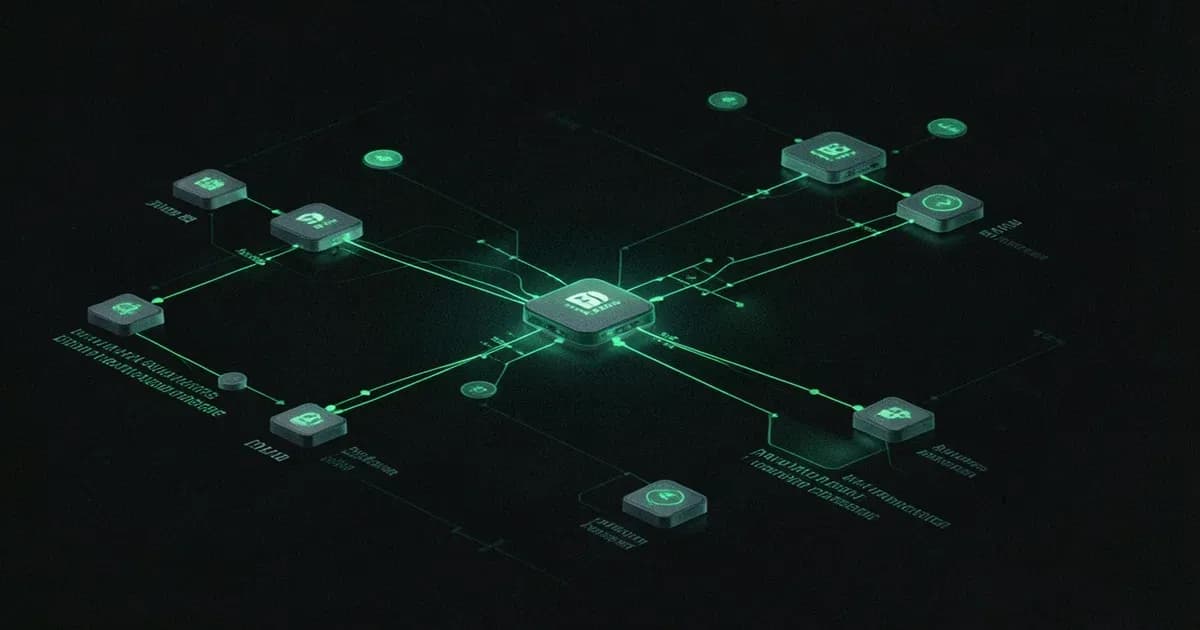
Every AI agent workflow in n8n has a hierarchical structure. The Agent node sits at the center, and sub-nodes connect below it to provide capabilities.
<!-- IMAGE: n8n AI agent node architecture diagram showing trigger, agent, model, tools, and memory connections -->Here's the anatomy:
| Component | What It Does | Example Nodes |
|---|---|---|
| Trigger | Starts the workflow | Chat Trigger, Webhook, Schedule |
| AI Agent | Reasoning engine (ReAct loop) | Tools Agent, OpenAI Functions Agent |
| Chat Model | The LLM that powers thinking | OpenAI GPT-4o, Anthropic Claude, Ollama |
| Tools | Actions the agent can take | HTTP Request, Calculator, SerpAPI, Code |
| Memory | Conversation context across turns | Window Buffer, Postgres, Redis |
| Output | Where results go | Respond to Webhook, Send Email, Update Sheet |
The Tools Agent is the one you'll use 90% of the time. It's the most flexible agent type, it takes your prompt, reasons about which tools to call, executes them, and loops until it has an answer. Under the hood, it runs a ReAct (Reason + Act) loop: think, act, observe, repeat.
n8n also offers specialized agents, an SQL Agent for database queries, a Plan and Execute Agent that breaks tasks into sub-steps, and a Conversational Agent for simpler chat flows. But the Tools Agent covers most use cases.
What You Need Before Starting
Before you build anything, get these three things sorted:
- n8n instance, either sign up for n8n Cloud ($20/month Starter) or self-host with Docker:
docker run -it --rm \
  --name n8n \
  -p 5678:5678 \
  -v n8n_data:/home/node/.n8n \
docker.n8n.io/n8nio/n8n-
An LLM API key, OpenAI, Anthropic, or Google Gemini. You can also use Ollama for free local models, though tool-calling performance varies.
-
A tool API key (optional), SerpAPI for web search ($50/month) or Brave Search API (free tier). You can build agents without search, but it's the most common first tool.
Once n8n is running, open http://localhost:5678 (self-hosted) or your cloud dashboard. Create a new workflow and you're ready.
Build Agent 1: A Web Research Agent
This agent takes a topic, searches the web, reads the results, and writes a structured summary. It's the "hello world" of n8n AI agents and genuinely useful for content research.
Step 1: Add a Manual Trigger
Click the + button and search for "Manual Trigger." Drop it on the canvas. This lets you test the workflow by clicking "Test Workflow", you'll swap it for a webhook or chat trigger later.
Step 2: Add an Edit Fields Node
Add an Edit Fields node after the trigger. Set a field called topic with a string value like "Latest developments in Model Context Protocol". This simulates user input.
Step 3: Add the AI Agent Node
Search for "AI Agent" and add it. Select Tools Agent as the agent type.
In the System Message field, write a prompt that defines behavior:
You are a research assistant. When given a topic:
1. Search the web for the latest information
2. Read at least 3 different sources
3. Write a structured summary with:
   - Key findings (bullet points)
   - Notable quotes or data points
   - Sources used

Be specific. Include dates, names, and numbers when available.
Do NOT make up information. If search results are unclear, say so.
Under Prompt, set it to the expression: {{ $json.topic }}, this pulls the topic from the Edit Fields node.
Step 4: Connect a Chat Model
Click the + below the Agent node to add a sub-node. Select OpenAI Chat Model (or whichever LLM you're using).
Configure it:
- Model:
gpt-4o(orgpt-4o-minifor cheaper runs) - Temperature:
0.3(lower = more factual, less creative)
Paste your API key in the credentials section.
Step 5: Add the Search Tool
Click + again to add a tool sub-node. Pick SerpAPI (or HTTP Request Tool if you want to hit a custom search API).
For SerpAPI:
- Add your API key as a credential
- The agent will call this tool whenever it decides it needs to search
For a free alternative, use the HTTP Request Tool configured to hit the Brave Search API:
URL: https://api.search.brave.com/res/v1/web/search
Method: GET
Query Parameters: q={{ $fromAI("query", "search query") }}
Headers: X-Subscription-Token: YOUR_BRAVE_KEY
The $fromAI() expression is the magic, it tells the agent "you decide what value to pass here."
Step 6: Test It
Click Test Workflow. Watch the execution panel on the right. You'll see:
- The agent receives the topic
- It decides to search (tool call)
- SerpAPI returns results
- The agent reasons about the results
- It might search again for more detail
- It produces a final summary
If the agent loops without converging, your system prompt probably needs sharper instructions. Tell it exactly when to stop searching.
<!-- IMAGE: n8n workflow canvas showing completed research agent with connected nodes -->Build Agent 2: A Customer Support Bot with Memory
The research agent was stateless, it forgot everything after each run. A customer support bot needs to remember the conversation. This is where agent memory comes in.
Step 1: Use a Chat Trigger
This time, start with the Chat Trigger node instead of Manual Trigger. This gives you n8n's built-in chat widget for testing conversations.
Step 2: Configure the Agent
Add a Tools Agent node. System prompt:
You are a customer support agent for a SaaS project management tool called "TaskFlow."

Rules:
- Always greet the user by name if provided
- Check the knowledge base before answering questions
- If you cannot find an answer, say: "Let me connect you with a human agent"
- Never make up features or pricing that you don't find in the knowledge base
- Keep responses concise (2-3 sentences max unless the user asks for detail)

Available tools:
- Knowledge base search: use this for product questions
- Ticket creation: use this when the user reports a bug or requests a feature
Step 3: Add Memory
Click + on the Agent to add a sub-node and select Window Buffer Memory.
- Context Window Length:
10(remembers the last 10 message pairs) - Session ID:
{{ $json.sessionId }}(from the chat trigger)
This is the simplest memory option, it keeps recent messages in a sliding window. For production bots that need persistent memory across sessions, use Postgres Chat Memory or Redis Chat Memory instead. Our guide on the best AI agent memory tools covers the tradeoffs between these approaches.
Step 4: Add Tools
Add two tool sub-nodes:
Tool 1 -- Knowledge Base (Vector Store QA): If you have product docs in a vector store (Pinecone, Qdrant, Supabase), use the Vector Store Question Answer Tool. This is essentially RAG (Retrieval-Augmented Generation) in a single node.
Tool 2 -- Ticket Creation (HTTP Request): Add an HTTP Request Tool configured to POST to your ticketing API:
URL: https://api.yourapp.com/tickets
Method: POST
Body (JSON):
{
  "title": "{{ $fromAI('title', 'ticket title') }}",
  "description": "{{ $fromAI('description', 'issue description') }}",
  "priority": "{{ $fromAI('priority', 'low, medium, or high') }}"
}
Step 5: Test the Conversation
Click Test Workflow and open the chat panel. Try a multi-turn conversation:
- "Hi, I'm Alex. How do I export my tasks to CSV?"
- "What about PDF export?"
- "Actually, PDF export is broken for me, can you file a bug?"
Watch how the agent searches the knowledge base for the first two questions and creates a ticket for the third. The memory node ensures it remembers Alex's name and the context of the PDF issue.
Using MCP to Extend Your Agents
n8n now supports the Model Context Protocol (MCP) in both directions, and this is where things get powerful.
Consuming MCP servers: Add the MCP Client Tool sub-node to your agent. Point it at any MCP server URL and the agent automatically discovers and can invoke all the tools that server exposes. One node, dozens of tools.
Exposing workflows as MCP tools: Use the MCP Server Trigger node to turn any n8n workflow into an MCP-compatible tool. External agents running in Claude Desktop, Cursor, or VS Code can then discover and call your n8n workflows. Build a "send Slack notification" workflow once, and every MCP-compatible agent in your stack can use it.
This bidirectional MCP support turns n8n into an agent hub, your n8n agents call external tools via MCP, and external agents call your n8n workflows via MCP.
Practical Tips for Better n8n Agents
After building dozens of agent workflows, here's what actually matters:
Keep tool counts low. Agents get confused with more than 5-7 tools. If you need more, create a "manager agent" that routes to specialized "worker agents", n8n supports agent-to-agent workflows.
Be prescriptive in system prompts. Don't just say "help the user." Spell out exact rules, output formats, and when to use each tool. The more specific your prompt, the fewer surprise tool calls.
Set token limits. In the Chat Model configuration, set a max token limit. Without one, a confused agent can burn through your API budget in a single loop.
Use error handling nodes. Add an Error Trigger workflow that catches failures and notifies you via Slack or email. Agents fail silently otherwise.
Test with edge cases first. Ask your agent something it shouldn't know. If it hallucinates instead of saying "I don't know," your prompt needs guardrails.
Log everything in development. Enable execution logging (available on Pro plan or self-hosted) so you can replay and debug exactly where an agent went wrong.
When n8n Agents Make Sense (and When They Don't)
n8n is a great fit if:
- You want production agents without managing Python infrastructure
- Your workflows connect multiple SaaS tools (Slack, Gmail, Notion, databases)
- Your team includes non-developers who need to modify agent behavior
- You need visual debugging of agent reasoning chains
n8n is probably the wrong choice if:
- You need fine-grained control over agent architectures (use LangGraph or CrewAI instead)
- Your agent is purely computational (ML pipeline, data processing) with no integrations
- You're building a multi-agent research system with complex state management
For business automation use cases, customer support bots, data processing agents, research assistants, lead qualification, n8n hits a sweet spot between power and accessibility.
FAQ
What LLMs does n8n support for AI agents?
n8n supports OpenAI (GPT-4o, GPT-4, GPT-3.5), Anthropic Claude (Claude 3.5 and 4 family), Google Gemini, Mistral, Cohere, HuggingFace models, and local models via Ollama. You swap models by changing a single sub-node, no workflow changes needed.
Is n8n free for building AI agents?
The self-hosted Community Edition is completely free with no execution limits. n8n Cloud starts at $20/month (Starter) with 2,500 executions. You'll still pay your LLM provider (OpenAI, Anthropic, etc.) separately for API calls.
How does n8n's AI Agent compare to writing agents in Python?
n8n trades customization for speed. A Python agent with LangChain gives you full control over every reasoning step. n8n gives you 80% of that capability in 20% of the time, with visual debugging and 500+ built-in integrations. Pick Python for research or novel architectures; pick n8n for business automation.
Can n8n agents use tools like web search and databases?
Yes. n8n agents can use any tool available as a node, SerpAPI, Brave Search, HTTP Request (for any API), SQL databases, Google Sheets, Slack, and hundreds more. You add them as sub-nodes below the Agent node.
What is the MCP Client Tool in n8n?
The MCP Client Tool connects your n8n agent to external MCP (Model Context Protocol) servers. Your agent automatically discovers all tools that server exposes and can call them during reasoning. It's a single node that can unlock dozens of external tools.
How do I add memory to an n8n AI agent?
Add a memory sub-node below your Agent node. Window Buffer Memory is the simplest option (keeps last N messages). For persistent memory across sessions, use Postgres Chat Memory, Redis Chat Memory, or Zep Memory. Set a session ID to track individual conversations.
Can I connect multiple agents in n8n?
Yes. n8n supports agent-to-agent workflows where a "manager" agent delegates tasks to specialized "worker" agents. You build each worker as a separate sub-workflow and connect them via the Call n8n Workflow tool.
What's the difference between the Tools Agent and other agent types?
The Tools Agent uses a ReAct reasoning loop and works with any tool. The OpenAI Functions Agent uses OpenAI's native function-calling API (slightly faster but OpenAI-only). The SQL Agent is specialized for database queries. The Plan and Execute Agent breaks complex tasks into sub-steps. For most use cases, start with Tools Agent.
How do I deploy an n8n agent to production?
For self-hosted: use Docker Compose with PostgreSQL and Redis, enable queue mode for horizontal scaling, and put it behind a reverse proxy with SSL. For cloud: just activate the workflow, n8n handles infrastructure. In both cases, swap the Chat Trigger for a Webhook trigger so external apps can call your agent.
Can n8n agents handle file uploads and images?
n8n can process files through its binary data handling. You can build agents that receive file uploads via webhook, extract text (using a Code node with a PDF parser, for example), and reason over the content. Native vision/image analysis depends on your LLM supporting multimodal input (GPT-4o does, for instance).