
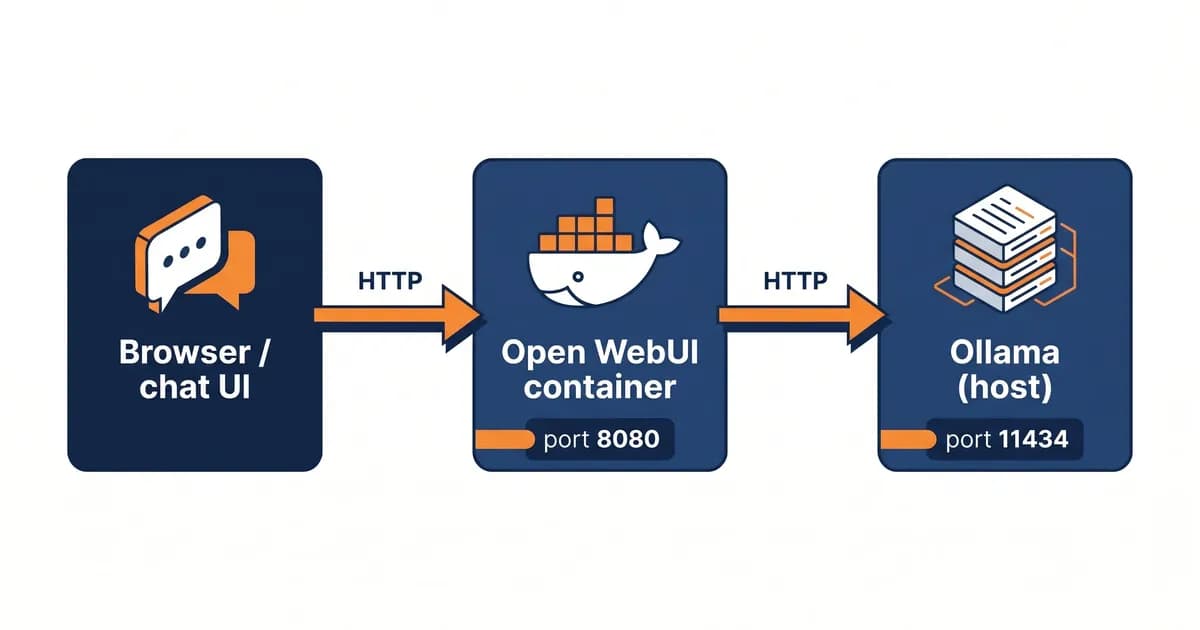
If you've ever wished ChatGPT lived on your laptop instead of OpenAI's server, Open WebUI + Ollama is exactly the stack you want. Open WebUI gives you the polished chat interface; Ollama runs the models locally. No API keys, no per-token billing, no data leaving your machine. This guide gets you from a fresh terminal to your first chat in about ten minutes, then layers on the stuff most tutorials skip: voice I/O, Pipelines, MCP, Apple Silicon benchmarks, and a clean HTTPS path with Caddy.
Quick takeaways:
- Open WebUI is a self-hosted, ChatGPT-style frontend; Ollama is the local model runner that powers it.
- The single-container Docker path gets you to first chat in ~10 minutes on a warm machine.
- Set
OLLAMA_BASE_URLtohttp://host.docker.internal:11434to fix the "can't connect" error nine times out of ten.- Open WebUI's killer features are Pipelines/Functions, native RAG, voice I/O, and MCP, none of which LM Studio matches.
What Is Open WebUI + Ollama, Really?
Open WebUI is an open-source, self-hosted web interface that gives Ollama (and other local LLM runtimes) a ChatGPT-style chat UI. Together they let you run private AI models on your own machine, no API keys, no per-token cost, full data control. Open WebUI is the chat layer; Ollama is the model layer. They talk over HTTP on port 11434, and that's the entire architecture.
Let's break down the pieces, because the names sound interchangeable but they aren't:
- Open WebUI, the browser app you actually use. Multi-user, RAG built in, plugin system, runs on port 8080 inside Docker (you map it to 3000 on your host).
- Ollama, the model server. It pulls GGUF files (think
.mp3for AI models), loads them onto your CPU/GPU, and exposes a tidy HTTP API on port 11434. - Models, actual weight files.
llama3.2:3b,qwen2.5:14b,deepseek-r1:7b, etc. Pulled viaollama pull, listed in Ollama's model library.
Why this combo wins: privacy (data stays local), cost (zero per-token), offline-capable, multi-user out of the box, and a real plugin ecosystem. If you're new to the broader space, our guide to running LLMs locally covers the hardware side.
The official Open WebUI docs are the canonical reference, bookmark them. They're terse, but accurate.
How Do I Install Open WebUI with Ollama? (Quick Setup)
Install Docker, install Ollama, then run docker run -d -p 3000:8080 --add-host=host.docker.internal:host-gateway -v open-webui:/app/backend/data --name open-webui ghcr.io/open-webui/open-webui:main. Visit http://localhost:3000, create the admin account, pull a model from Admin → Settings → Connections → Ollama, and start chatting. Total time: about 10 minutes on a warm machine.
Here's the full path, step by step:
1. Install Docker Desktop, grab it from docker.com for Mac/Windows, or apt install docker.io on Linux.
2. Install Ollama
# macOS / Linux
curl -fsSL https://ollama.com/install.sh | sh

# Windows: download installer from ollama.com
3. Pull a starter model. I'd start with llama3.2:3b, fast on almost anything, smart enough to feel useful. If you want a tour of the strongest options, check our list of best open-source LLMs.
ollama pull llama3.2:3b4. Run the Open WebUI container (the canonical command):
docker run -d \
  -p 3000:8080 \
  --add-host=host.docker.internal:host-gateway \
  -v open-webui:/app/backend/data \
  --name open-webui \
  --restart always \
  ghcr.io/open-webui/open-webui:main
5. Open http://localhost:3000, sign up (the first user automatically becomes admin), and you're chatting.
Pro tip: On Apple Silicon Macs, run Ollama natively (not in Docker). That's by design, it lets Ollama use the Metal GPU. Open WebUI runs in Docker; the two talk over
host.docker.internal:11434.
About that "10-Minute" promise: that's a warm-machine number, Docker already installed, decent internet for the ~2 GB image pull and ~2 GB model pull. First-ever Docker install with no cache? Add ten minutes for that. Slow connection? Add another five. Honest baseline, not a marketing number.
Docker Compose: The Production-Ready Setup
If you want a reproducible, multi-container setup for Open WebUI plus a self-contained Ollama service, Docker Compose is the cleaner path. One YAML file declares both services, a shared network, named volumes for persistence, and lets you redeploy with a single docker compose up -d. Great for servers, homelabs, or teams.
The trick that trips people up: when both services run inside Compose, set OLLAMA_BASE_URL=http://ollama:11434 (the Compose service name), not host.docker.internal. Docker's internal DNS resolves the service name automatically.
services:
  ollama:
    image: ollama/ollama:latest
    container_name: ollama
    ports:
      - "11434:11434"
    volumes:
      - ollama:/root/.ollama
    restart: always

  open-webui:
    image: ghcr.io/open-webui/open-webui:main
    container_name: open-webui
    ports:
      - "3000:8080"
    environment:
      - OLLAMA_BASE_URL=http://ollama:11434
    volumes:
      - open-webui:/app/backend/data
    depends_on:
      - ollama
    restart: always

volumes:
  ollama:
  open-webui:
Bring it up:
docker compose up -d
docker compose logs -f
Two notes worth highlighting. First, named volumes (ollama: and open-webui: at the bottom) beat bind mounts here, Docker manages permissions, and your chat history/config survive container rebuilds. Second, if you want one Open WebUI talking to local Ollama and remote OpenAI/Anthropic through a single URL, drop a LiteLLM proxy in front. And if you're still picking your runtime layer, our roundup of best local LLM tools covers Ollama, vLLM, LM Studio, and friends.
GPU Acceleration: NVIDIA, AMD, and Apple Silicon
Ollama auto-detects NVIDIA GPUs via the NVIDIA Container Toolkit, AMD GPUs via ROCm on Linux, and Apple Silicon GPUs natively through Metal. You don't pass --gpus all to Open WebUI, only Ollama needs the GPU. The fastest setup on each platform looks different, and some "wait why is this slow" moments come down to having Ollama in the wrong place.
NVIDIA (Linux + Windows WSL2)
Install the NVIDIA Container Toolkit, then run Ollama in Docker with --gpus all:
docker run -d --gpus=all \
  -v ollama:/root/.ollama \
  -p 11434:11434 \
  --name ollama \
  ollama/ollama
Verify with nvidia-smi while a model is loaded, you should see ollama on the GPU process list. The OLLAMA_NUM_GPU env var lets you cap layers when you're juggling VRAM with other workloads.
Apple Silicon (M1/M2/M3/M4)
Run Ollama natively, not in Docker. There's no Metal GPU passthrough into Docker yet (as of early 2026), so a Dockerized Ollama on Mac falls back to CPU, and you'll wonder why your M3 Max feels like a 2015 ThinkPad. Open WebUI still runs in Docker; it reaches Ollama via host.docker.internal:11434.
On my M2 Pro (16 GB) running llama3.2:3b, I see roughly 45-55 tokens/sec. llama3.1:8b drops to ~22-28 tokens/sec. qwen2.5:14b is borderline usable at ~9-12 tokens/sec, fine for chat, painful for batch work. Numbers vary with quantization and context length, but that's the order of magnitude.
Tokens/sec by Model and Hardware
Data table
| Model | Apple M2 Pro 16GB | RTX 3060 12GB | RTX 4090 24GB |
|---|---|---|---|
| llama3.2:3b | 50 | 75 | 180 |
| llama3.1:8b | 25 | 45 | 110 |
| qwen2.5:14b | 11 | 22 | 65 |
AMD (ROCm on Linux)
Ollama 0.5+ ships ROCm support for RDNA2/RDNA3 cards (RX 6000/7000 series, MI200/MI300 datacenter chips). Use the dedicated image:
docker run -d --device=/dev/kfd --device=/dev/dri \
  -v ollama:/root/.ollama \
  -p 11434:11434 \
  --name ollama \
  ollama/ollama:rocm
AMD performance has closed the gap meaningfully through 2025 — not NVIDIA-tier yet, but no longer a science project.
How Do I Add RAG (Your Own PDFs) to Open WebUI?
Open WebUI ships native RAG. Click your profile → Workspace → Knowledge, create a knowledge base, drop in PDFs, Word docs, Markdown, or text files. Behind the scenes Open WebUI chunks documents, embeds them with the configured embedding model (default nomic-embed-text), stores them in ChromaDB, and retrieves at query time. No external service required.
Setup takes one extra step: pull the embedding model first.
ollama pull nomic-embed-textThen in Admin → Settings → Documents, set the embedding model to nomic-embed-text. Tweak chunk size (default 1500) and overlap (default 100) to taste. The classic gotcha: too-large chunks blow past your context window on small models. If you're running llama3.2:3b with a 4K context, chunks of 1500 tokens leave almost no room for the actual question, drop to 800 with 80 overlap.
To use a knowledge base in chat, type # and pick the collection. Or attach it permanently to a Custom Model in Workspace → Models. Web search works similarly, flip on a provider (SearXNG, Brave, or Tavily) in Admin → Settings → Web Search, and the model can pull live results.
For a deeper RAG comparison, see our RAG tools roundup. And if ChromaDB isn't cutting it at scale, our breakdown of vector database options covers Qdrant, pgvector, and the tradeoffs.
Voice I/O: Talk to Your Local AI
Open WebUI supports both speech-to-text (STT) and text-to-speech (TTS). For STT, faster-whisper runs locally with no API key. For TTS, you can wire OpenAI's TTS API or run a local engine like coqui-tts. Once enabled, a microphone icon appears in the chat box and your local AI starts talking back.
Walk to Admin → Settings → Audio. Two engines, two dropdowns.
STT path, pick Whisper (Local), choose a model size: tiny, base, small, medium, or large. The model auto-downloads on first use. base is the sweet spot for most laptops; medium if you have GPU headroom.
TTS path, simplest is OpenAI TTS: paste an API key, pick tts-1 and a voice (alloy, nova, etc.). Fully-local path: coqui-tts engine, with a separate Docker image. Most folks land on local Whisper + OpenAI TTS as a pragmatic middle ground, your audio never leaves the box for input, and the API call is just a short text string for output.
You can bake the choice into the container with env vars:
docker run -d \
  -e WHISPER_MODEL=base \
  -e AUDIO_STT_ENGINE=whisper \
  -p 3000:8080 \
  --add-host=host.docker.internal:host-gateway \
  -v open-webui:/app/backend/data \
  --name open-webui \
  ghcr.io/open-webui/open-webui:main
The full audio reference lives in the Open WebUI GitHub docs.
Pipelines & Functions: Open WebUI's Killer Feature
Pipelines and Functions are how you extend Open WebUI without forking it. Pipelines are external Python services that act as filters, model routers, or full custom handlers. Functions are inline Python (Filter, Action, or Pipe) that live inside Open WebUI itself. Together they're why Open WebUI beats LM Studio for serious users.
Three Function types, one sentence each:
- Filter, pre/post-processes messages (PII redaction, profanity filter, prompt rewriting).
- Action, a button in the chat UI that triggers Python (re-summarize, save to Notion, run a SQL query).
- Pipe, a full custom model handler (route to a remote API, chain multiple models, build an agent).
Here's a minimal Filter that strips email addresses from user prompts before they reach the model:
from pydantic import BaseModel
import re

class Filter:
    class Valves(BaseModel):
        priority: int = 0

    def __init__(self):
        self.valves = self.Valves()

    def inlet(self, body: dict, __user__: dict = None) -> dict:
        for message in body.get("messages", []):
            if message.get("role") == "user":
                message["content"] = re.sub(
                    r"[\w\.-]+@[\w\.-]+",
                    "[REDACTED_EMAIL]",
                    message["content"],
                )
        return body
Drop that into Admin → Settings → Functions → New, save, and toggle it on for any model. Done.
For external Pipelines, spin up the dedicated container alongside Open WebUI:
  pipelines:
    image: ghcr.io/open-webui/pipelines:main
    container_name: pipelines
    ports:
      - "9099:9099"
    volumes:
      - pipelines:/app/pipelines
    restart: always
Then in Admin → Settings → Connections, add http://pipelines:9099 as an OpenAI-compatible API. Upload .py files in Admin → Settings → Pipelines. The official Pipelines repo has dozens of examples, translation routers, Langfuse logging, function calling, the works.
MCP: Connecting Open WebUI to External Tools
Open WebUI 0.6+ supports the Model Context Protocol (MCP), which means your local model can call external tools, file search, GitHub, Slack, your own custom servers, through the same protocol Claude Desktop uses. It's the cleanest way to give a local model real tool use without writing a Pipeline.
Add an MCP server in Admin → Settings → Tools: paste the server URL, give it a name, and enable per model. The model decides when to call it during the chat. We cover the protocol end-to-end in our Model Context Protocol (MCP) guide, same patterns, just from the Open WebUI side instead of Claude Desktop's.
Why this matters: as of mid-2026, almost no Open WebUI tutorial mentions MCP. If you've already standardized on MCP servers for your Claude or Cursor setup, you can point Open WebUI at the exact same servers. One protocol, every client.
Why Can't Open WebUI See My Ollama Models? (Troubleshooting)
If Open WebUI loads but the model dropdown is empty, the container can't reach Ollama. Nine times out of ten the fix is --add-host=host.docker.internal:host-gateway plus OLLAMA_BASE_URL=http://host.docker.internal:11434. On Linux without the host-gateway flag, Docker's bridge network can't see the host's port 11434. The first time we deployed this on a client's Linux box, we hit exactly this and lost an hour.
Three root causes, in order of frequency:
-
Missing
--add-hostflag (most common on Linux). macOS Docker Desktop setshost.docker.internalautomatically; Linux needs the explicit flag. -
Ollama bound to
127.0.0.1only. From the container's perspective, that's not reachable. Fix:bashOLLAMA_HOST=0.0.0.0:11434 ollama serveOr set
Environment="OLLAMA_HOST=0.0.0.0:11434"in the systemd unit on Linux. -
Firewall / antivirus blocking 11434. Less common, but check
ufw, Windows Defender, or corporate endpoint protection.
Diagnostic, run this from inside the Open WebUI container:
docker exec open-webui curl http://host.docker.internal:11434/api/tagsIf that returns JSON with your model list, networking's fine and the issue is in Open WebUI's settings (check Admin → Connections → Ollama URL). If it hangs or refuses, you've got a host-side issue, start with cause #2.
Open WebUI vs LM Studio vs Jan vs AnythingLLM
Open WebUI wins on multi-user, RAG depth, and Pipelines/Functions. LM Studio wins on out-of-the-box GPU performance and a polished single-user UI. Jan wins on minimal-friction first-run. AnythingLLM wins on document ingestion ergonomics. If you want a self-hosted ChatGPT replacement for a team, Open WebUI is the answer.
| Feature | Open WebUI | LM Studio | Jan | AnythingLLM |
|---|---|---|---|---|
| Multi-user | Yes | No | No | Yes |
| Native RAG | Yes (deep) | Plugin only | Basic | Yes (best UX) |
| Plugins / Extensions | Pipelines + Functions | Limited | Extensions | Plugins |
| GPU support | Via Ollama backend | Built-in (best) | Built-in | Via backend |
| Best for | Self-hosted teams | Solo desktop power users | First-time local AI | Document-heavy workflows |
Verdict: if you're a solo dev who just wants to run a model on your gaming GPU and chat, LM Studio is faster to set up. If you're building a private ChatGPT for a team, doing serious RAG, or wiring custom Python logic, Open WebUI is the only real choice. Our broader best local LLM tools post compares the runtime layer (vLLM, llama.cpp, Ollama) underneath these UIs.
How Do I Expose Open WebUI Securely Over HTTPS?
Two clean paths: a 5-line Caddyfile in front of Open WebUI for a real Let's Encrypt cert (production-ish), or a Cloudflare Tunnel for share-with-my-team usage with zero open ports. Both keep Open WebUI on localhost:3000 while exposing a clean public URL with HTTPS. Pick based on whether you control DNS for a domain.
The Caddy path, point your domain at the box, then:
ai.example.com {
    reverse_proxy localhost:3000
}
That's the entire config. Caddy fetches a Let's Encrypt cert automatically on first request. Run caddy run --config Caddyfile (or use the systemd unit). Full reference: Caddy docs.
The Cloudflare Tunnel path, cloudflared tunnel create open-webui, route a hostname in your Cloudflare zone, then cloudflared tunnel run. Zero open ports, Cloudflare handles TLS. Great for "I want my team on this without poking holes in my firewall."
One hard rule: never expose port 3000 raw to the public internet. Open WebUI's signup is open by default, anyone hitting your URL can create an account. WEBUI_AUTH=False is fine for LAN, never for public. Always front it with a reverse proxy plus authenticated signup whitelisting (Admin → Settings → General → "Enable Signup" off after you've created your accounts).
How Techsy Approaches Local LLM Deployments
We've shipped Open WebUI + Ollama setups for clients in legal, healthcare, and internal tooling teams who can't (or won't) send data to OpenAI. The patterns repeat enough that we've stopped writing them from scratch, but every deployment has the same three priorities.
What we actually do:
- Right-size the model to the hardware and budget. The 3B–8B range hits the sweet spot more often than not. Bigger isn't always better when latency and cost-per-month matter.
- Harden the deployment. Caddy in front, signup disabled,
/app/backend/dataon a backed-up named volume, weekly snapshots, and an actual disaster-recovery plan. - Wire Pipelines for org-specific needs. PII redaction filters, custom RAG pipelines pointed at internal SharePoint or Confluence, function-calling tools for safe shell access, the stuff that makes a chat UI actually useful inside a company.
If you'd rather skip the setup and have a private AI stack handed to you running, book a free consultation. We're happy to scope it.
Wrap-Up
Three quick recaps:
- Single-container path, fastest way to first chat, ten honest minutes on a warm machine.
- Docker Compose, what you actually want for anything that needs to survive a reboot.
- Pipelines + RAG + MCP, the moat that makes Open WebUI worth choosing over LM Studio or Jan.
You're chatting with your own AI in ten minutes. From there it's all incremental, add RAG when you have docs, add Caddy when you want it on your phone, add Pipelines when you want it to do real work. If you want to go deeper into local-model selection, our running LLMs locally guide covers the hardware side in depth.
FAQ
Is Open WebUI free?
Yes, Open WebUI is MIT-licensed and fully open source. Self-hosting is free; you only pay for the hardware running it (your laptop, a homelab server, or a cloud VM). Optional paid pieces include OpenAI's TTS API for voice, or commercial models accessed via Open WebUI's OpenAI-compatible connector. Everything core is no-cost.
Can Open WebUI run without Ollama?
Yes, Open WebUI talks to any OpenAI-compatible API. You can point it at OpenAI directly, Anthropic via a LiteLLM proxy, vLLM servers, llama.cpp's HTTP server, or hosted providers like Groq and Together. But "Open WebUI + Ollama" is the canonical local-AI combo because Ollama makes model management dead simple.
How do I add models to Open WebUI?
Easiest path: from the host, run ollama pull llama3.2:3b (or any model from ollama.com/library). The model appears in Open WebUI's dropdown automatically, no restart needed. Alternatively, in Open WebUI go to Admin → Settings → Connections → Ollama and use the in-UI pull button. Either way, models live on the Ollama side.
Can I use Open WebUI on a phone?
Yes, Open WebUI is fully responsive, so any mobile browser works. Pair it with HTTPS (Caddy with a Let's Encrypt cert, or a Cloudflare Tunnel) and it becomes a fully functional mobile chat app. Add it to your home screen on iOS or Android for a near-native PWA experience. Don't expose it publicly without auth, though.
How do I update Open WebUI?
Pull the latest image and restart: docker pull ghcr.io/open-webui/open-webui:main && docker stop open-webui && docker rm open-webui then re-run your original docker run command. Named volumes preserve all data, chat history, users, RAG collections, and settings. With Docker Compose: docker compose pull && docker compose up -d. Updates ship roughly weekly.