
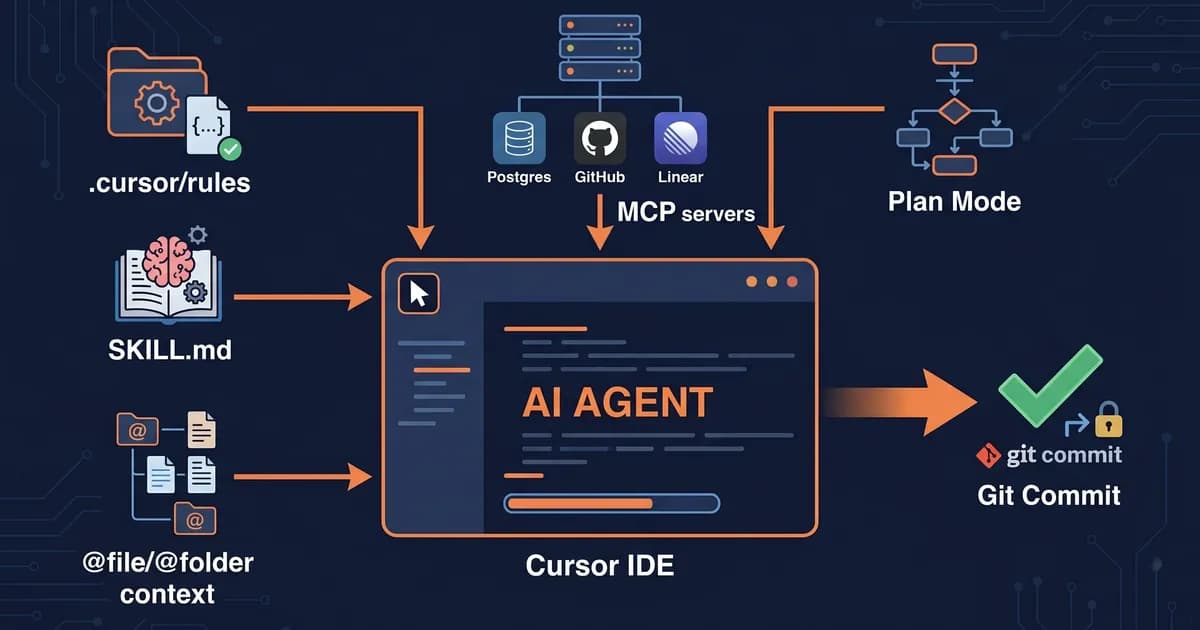
We ship every techsy.io blog post in Cursor + Claude Code, and the playbook for using Cursor more efficiently genuinely changed in 2026. Most tip lists you'll find were written before Composer 2.0, before Plan Mode, before Skills. Here are the 12 things that actually moved our shipping speed this year, pulled from real client builds, not theory.
Key takeaways
- The biggest 2026 win in Cursor isn't a prompt trick, it's mastering Plan Mode (Shift+Tab) before you let Agent run.
- Use Ask for questions, Cmd+K for surgical edits, Agent for multi-file work, Plan Mode for anything bigger than one file.
- Rules tell the agent who you are; Skills tell it how to do specific tasks; MCP gives it tools to call your real systems.
- Pair Cursor with Claude Code: plan in one, execute in parallel agents in the other, the most underused workflow of 2026.
Which Cursor Mode Should You Actually Use?
Cursor has five working modes that solve different problems. Use Ask for questions about your codebase, Cmd+K (Edit) for surgical inline changes, Agent for multi-file work, Plan Mode (Shift+Tab) for anything that needs strategy before code, and Debug Mode when an agent run goes sideways. Pick wrong and you'll either burn quota or ship slop.
| Mode | Shortcut | When to use | Best for | Avoid when |
|---|---|---|---|---|
| Ask | Cmd+L | Read-only questions | "How does this work?" | You want code written |
| Edit | Cmd+K | Surgical inline change | Rename, refactor 1 function | Multi-file work |
| Agent | Cmd+I | Multi-file feature/refactor | Build a new endpoint | Tiny tweaks |
| Plan Mode | Shift+Tab (in Composer) | Strategize before coding | New feature > 1 file | One-line fixes |
| Debug Mode | Toggle in Composer | Agent went off the rails | Diagnosing a bad run | Normal flow |
The mode you start in shapes everything that follows. Reach for Agent when you only needed Edit and you'll get a cleanup tax on three files you didn't want touched. Skip Plan Mode on a multi-file feature and you'll watch the agent invent half a data model on the fly. The official Cursor docs walk through each mode's surface, but the real skill is choosing fast.
1. Use Plan Mode for Anything Bigger Than One File (Shift+Tab)
Plan Mode researches your repo first, drafts a plan in markdown, and waits for your approval before touching any code. Hit Shift+Tab inside Composer to toggle it on. This single feature, shipped with Composer 2.0, changes the math on multi-file work, you stop arguing with an agent that already wrote the wrong thing.
The workflow is simple: describe the task, let Plan Mode read the repo and draft a plan, edit the plan in place, then approve. The agent executes against the plan instead of guessing. Save plans worth re-running:
.cursor/plans/2026-05-add-stripe-webhook.md
.cursor/plans/2026-05-migrate-auth-to-supabase.md
Plan Mode is the difference between an agent that thrashes for 20 turns and one that ships in 2.
In our testing on real client work, switching to Plan Mode for anything multi-file cut our average task length roughly in half. Lee Robinson's agent best-practices post on the Cursor blog goes deeper on the planning loop. The short version: never let Agent loose on a feature you couldn't sketch in five bullets first.
2. Write a .cursorrules File You'd Actually Check Into Git
Rules are the highest-use one-time setup in Cursor. They're persistent context that ships with your repo, so every teammate (and every agent run) starts from the same baseline. The new format lives in .cursor/rules/*.md; the legacy single-file .cursorrules still works but the directory format wins on organization.
What goes in: your stack, naming conventions, the libraries you've standardized on, and a "do not do this" list. What stays out: style rules a linter can enforce. Push spacing and quotes into ESLint and Prettier, Rules should be the things tooling can't catch.
# .cursor/rules/stack.md
- Next.js 15 App Router, TypeScript strict, Tailwind v4
- Supabase for auth + DB; never call service role from client code
- Server actions for mutations; no API routes unless webhook
- Prefer `unknown` over `any`; narrow before use
- Don't add new ORMs; we're on raw SQL via Supabase client
- Don't generate tests we didn't ask for
We keep a .cursor/rules/ folder in every repo. For the syntax and pattern library, our deep-dive on .cursor/rules syntax and patterns covers the full surface. The Cursor official docs are the source of truth for format changes.
3. Stop Pasting Context, Let @file, @folder, @docs, @past chats Do It
The @-context system beats copy-paste in every direction: it deduplicates, stays current with your file changes, and the agent can re-fetch on its own. Pasting code into the chat is the 2024 way; in 2026 you point and the agent reads. The four primitives cover almost every situation.
@file, pin a specific file:@file lib/auth.ts@folder, give the agent a whole subtree:@folder app/api/billing@docs, pull in indexed external docs (Supabase, Stripe, your own):@docs Supabase@past chats, revive context from an earlier conversation without bloating the current one@branch(power user), diff context against another branch for review or migration tasks
The mental shift: think of @-context as the agent's working memory. You're not "telling" it about your code, you're handing it tools to look. We cover the wider pattern in our full context engineering playbook.
4. When Should You Start a Fresh Conversation?
Start a new conversation the moment the agent's answers feel slightly off. Long conversations rot, context fills up, the model starts confusing earlier files with current ones, and quality silently drops. The "context window full" warning is way too late. Trust the friction, not the warning.
Before you nuke the chat, save anything reusable to .cursor/plans/ so you don't lose the trail. We treat these like git stash for context: write down the state, the next step, and the file paths the agent was thinking about. New conversation, paste the file path, keep moving. The two-minute write-up beats forty minutes of trying to rescue a confused thread.
5. Use Cmd+K (Edit) for Surgical Changes, Not Agent
Reach for Cmd+K when you'd describe the change in one sentence. Inline Edit is faster than Agent for renames, single-function refactors, and "make this match the pattern above" tweaks, it doesn't open a side panel, doesn't spawn a multi-step plan, and doesn't touch files you didn't highlight. Lower risk, lower latency, less cleanup.
| Shortcut | What it does | When to use |
|---|---|---|
| Cmd+K | Inline Edit | Rename, refactor 1 function |
| Cmd+I | Open Composer (Agent) | Multi-file work |
| Cmd+L | Open Ask chat | Questions about code |
| Shift+Tab | Toggle Plan Mode (in Composer) | Strategize before coding |
| Cmd+. | Quick fix / accept suggestion | Cleanup |
A rule of thumb that's served us well: if the change touches one function and you can name it before typing, Cmd+K. If you're not sure how many files you'll need to modify, open Composer with Plan Mode. The wrong tool for either bucket is the slowest path.
6. Run Agents in Parallel With Worktrees
Parallel agents let you run multiple Cursor sessions on the same repo without them stepping on each other, by giving each one its own git worktree, a separate working directory pointed at a separate branch. When you have three independent tasks (refactor + test generation + doc update), this saves real time. When the tasks aren't independent, it creates merge pain.
git worktree add ../myapp-tests feature/test-coverage
git worktree add ../myapp-docs feature/doc-pass
# Open each worktree in its own Cursor window, run an agent in each
When we're shipping a multi-language post translation, parallel agents save us about 40 minutes per run. The trick is true independence, overlap the file scopes and you'll spend the saved time resolving conflicts. Cloud agents (Cursor's Pro-tier background agents) work the same way, just remote. For a wider view, Cursor's cloud agents stack up against alternatives like Devin and Codex in our comparison.
7. Add MCP Servers for the Integrations You Actually Use
MCP (Model Context Protocol) servers give the agent real tools it can call, your database, your GitHub, your Linear, your Figma. Without MCP, the agent talks about your systems. With MCP, it queries them directly. The high-use four for most teams are GitHub, Postgres (or Supabase), Linear, and Figma.
Configuration lives in ~/.cursor/mcp.json (global) or .cursor/mcp.json (per-repo). A minimal setup:
{
  "mcpServers": {
    "github": {
      "command": "npx",
      "args": ["-y", "@modelcontextprotocol/server-github"],
      "env": { "GITHUB_TOKEN": "ghp_xxx" }
    }
  }
}
Add only the servers you'll actually use this week, every server eats into the agent's tool budget. The official MCP spec at modelcontextprotocol.io is the source of truth for the protocol itself, and the full MCP setup guide for any agent host walks through the patterns that hold across Cursor, Claude Code, and the rest.
8. Rules vs Skills vs MCP, Pick the Right Tool
These three look similar at a glance and they're not. Rules are persistent context (who you are, what your stack is). Skills are reusable how-to recipes for specific tasks (how to add a Stripe webhook in this codebase). MCP gives the agent tools to call external systems. Mix them up and you'll over-stuff Rules or under-use Skills.
| Mechanism | What it gives the agent | When to use | Lives in |
|---|---|---|---|
| Rules | Persistent context (your stack, conventions, "don't do X") | Always-on guardrails | .cursor/rules/*.md |
| Skills | Reusable how-to recipes for specific tasks | Repeatable workflows ("how to add a Stripe webhook") | .cursor/skills/*/SKILL.md |
| MCP | Tools the agent can call (DB queries, GitHub PRs, Linear tickets) | Connect to external systems | mcp.json config |
Rules tell the agent who you are. Skills tell it how to do things. MCP gives it tools to call your real systems.
A practical example: "we use Tailwind v4" goes in Rules. "Here's our exact pattern for adding a new Tailwind v4 component" goes in a Skill. "Open a GitHub PR for the change" goes through MCP. Three layers, three jobs. Use the right one and your .cursor/ directory becomes a real productivity moat.
9. Pair Cursor With Claude Code (or Vice Versa)
The split that's worked best in our 2026 builds: heavy planning and repo-wide reasoning in Claude Code (terminal-native, comfortable with longer contexts and recursive file reads), parallel agent execution and UI-heavy edits in Cursor. On smaller codebases you can flip it. The point isn't picking sides, it's running both with each one doing what it's actually best at.
Our actual workflow looks like this:
- Open Claude Code in the repo root, ask it to read the relevant files and draft a plan.
- Copy the plan into a new file:
.cursor/plans/2026-05-feature-x.md. - Open Cursor, hit Shift+Tab for Plan Mode, point it at the plan file.
- Approve, let Cursor execute, watch the diff.
- If the diff is wide, kick off parallel agents in worktrees for the independent pieces.
The fastest 2026 workflow isn't picking Cursor or Claude Code, it's running both, with each one doing what it's actually best at.
Why this works: Claude Code's terminal use is incredible for "read 40 files, find the pattern, propose a refactor", the kind of task where you want a long internal monologue. Cursor's IDE surface is incredible for "show me the diff, let me tweak inline, accept hunk by hunk." Neither tool is the loser; the loser is the team using only one. We compared all three options head-to-head in Claude Code vs Cursor vs Copilot if you want the long-form breakdown.
10. Use Bugbot, Bug Finder, and Debug Mode for the Right Kind of Bug
Cursor ships three different bug tools and they catch different things. Bugbot reviews PRs for logic bugs after commit. Bug Finder scans for unintended breakages while you're editing. Debug Mode helps you diagnose a confused agent run mid-conversation. Pick the wrong tool and you'll miss the bug or wait for nothing.
| Tool | What it catches | When to invoke |
|---|---|---|
| Bugbot | Logic bugs in PRs | After commit, before merge |
| Bug Finder | Unintended breakages while editing | Mid-session sanity check |
| Debug Mode | Confused agent reasoning | When Agent's answers feel wrong |
Bugbot pays for itself the first time it catches a payment-flow regression you would've shipped. Bug Finder is the quieter win, it's the "did I just break the build" check that runs without you thinking about it. Debug Mode is the rescue tool: when an agent's last three suggestions felt wrong, pop Debug Mode and you'll usually see it stuck on a stale file.
11. Match the Model to the Task, Don't Always Reach for the Smartest One
Default to Sonnet-class for routine edits, reach for Opus or GPT-5 for plans and complex refactors, and let Cursor's auto-mode handle the in-between. Always picking "the smartest" model burns Pro quota and (counterintuitively) slows things down, bigger models think longer on jobs that didn't need the brainpower.
A working mental model: planning + multi-file refactor + "weird bug, no idea where" → top-tier. One-function edit + rename + "tweak this Tailwind" → Sonnet or auto. The Cursor model docs keep the current pricing and capabilities table, worth a re-read each quarter as the lineup shifts. Auto-mode is acceptable but never optimal; the muscle memory of choosing your model is worth building.
12. Take Notes the Agent Can Read (.cursor/plans/, @past chats)
Treat .cursor/plans/*.md as memory-on-disk and @past chats as conversation revival. The agent's context window is the wrong place to store anything you'll need tomorrow. Write the plan, write the decisions, write the gotchas, then the next conversation starts with @file .cursor/plans/feature-x.md instead of "let me re-explain everything from scratch."
This compounds. After three months you have a .cursor/plans/ directory that's effectively your team's playbook for this codebase, agent-readable. New teammates onboard faster, agents make fewer wrong assumptions, and you stop paying the "re-explain the codebase" tax every Monday morning. Cheap habit, big payoff.
What NOT to Do (Anti-Patterns)
The traps below all look productive in the moment. They aren't. We learned every one of these the slow way, on real client repos, with the receipts to prove it. Avoiding the bottom of this list will save you more time than mastering the top of it.
- Don't argue with a confused agent for 30 turns. Restart instead. If turns 5-7 are wrong, turn 8 won't fix it. Save the relevant files to a plan, start fresh, paste the plan back in.
- Don't skip review on auth, payments, or anything touching money. Agent autocomplete bugs in these areas are expensive in the worst possible way. Read every line. Twice.
- Don't use Agent for one-line tweaks. Cmd+K is faster, scoped, and won't accidentally rewrite an unrelated import.
- Don't put your full style guide in Rules. Use a linter (ESLint, Prettier, Biome). Rules are for conventions a tool can't enforce, patterns, "don't do this," stack choices.
- Don't run YOLO mode on production-adjacent repos without a sandbox or branch protection. Auto-accept is great for prototypes and a disaster on
main.
How Techsy Uses Cursor in Production
Our team runs Cursor + Claude Code on every client build, Next.js + Supabase stacks, multilingual content systems, the techsy.io site itself. The pattern that's stuck: a .cursor/rules/ folder in every repo on day one, Plan Mode required for any task touching more than three files, and Claude Code on the side for repo-wide reasoning. We treat the .cursor/ directory as production code; it ships, it's reviewed, it's versioned.
If you're building something complex and want to ship it faster, without burning a sprint figuring out the AI tooling, get a free consultation and we'll look at your stack with you.
FAQ
Is Cursor still worth it in 2026 with Composer 2.0?
Yes, with caveats. Composer 2.0 + Plan Mode + Skills make Cursor genuinely faster for multi-file work than the 2025 version, and the IDE surface still beats terminal-only tools for visual review. The caveat: if you're doing repo-wide refactors or long-context planning, pair it with Claude Code rather than fighting Cursor's chat to do everything.
How do I use Cursor and Claude Code together?
Plan in Claude Code (terminal use, long context, comfortable with reading 40 files), then execute in Cursor. The simplest recipe: have Claude Code draft a plan in .cursor/plans/feature-x.md, open Cursor, hit Shift+Tab for Plan Mode, point it at the file. Cursor executes, you review the diff visually. Both tools doing what they're best at.
How do I stop Cursor from going off the rails?
Three habits. Use Plan Mode for anything multi-file so you approve a plan before code. Start a new conversation the second answers feel off, long contexts rot quietly. And put a tight .cursor/rules/ file in the repo so the agent never invents libraries or patterns you don't use. Most "Cursor went rogue" stories trace back to skipping one of those.
Should I use YOLO mode in Cursor?
On prototypes, throwaway scripts, and isolated branches, yes, it's a real speed boost. On anything production-adjacent, no. YOLO mode auto-accepts agent actions, including file deletions and shell commands. Pair it with branch protection and a sandbox if you must use it on a real repo. Otherwise stick with explicit accept-hunk flow.
Is Cursor better than Windsurf or GitHub Copilot?
For multi-file agentic work in 2026, Cursor's lead is real, Plan Mode and parallel agents have no direct equivalent in Copilot. Windsurf is a closer fight, especially on UI polish. We dug into how Cursor compares to Windsurf and Claude Code vs Cursor vs Copilot, the short version: Cursor wins on agent depth, Windsurf wins on cleanliness, Copilot wins on price.
Conclusion
The three tips that move the needle most:
- Plan Mode before any multi-file work, Shift+Tab and approve a plan, don't argue with a confused agent later.
- A real
.cursor/rules/folder in every repo, the highest-use one-time setup in Cursor. - Cursor + Claude Code together, plan in one, execute in the other, stop trying to make a single tool do everything.
Build those three habits and you'll feel the speed difference inside a week. For the next layer down, our deep-dive on .cursor/rules patterns is the natural follow-up.